Building a Wix CLI app with React and custom backend
Module 47: How to Build a Wix App: Complete Developer Guide | Lesson 529 of 683 | 65 min read
By Michael Andrews, Wix SEO Expert UK
Wix CLI apps give you the full power of modern web development: React with TypeScript for the frontend, Node.js for the backend, and the complete Wix SDK for platform integration. This lesson walks you through building a real CLI app with a dashboard page, a site widget, backend service plugins, OAuth authentication, and database collections. By the end, you will have a working app architecture that you can adapt for any use case.
CLI App Architecture Overview
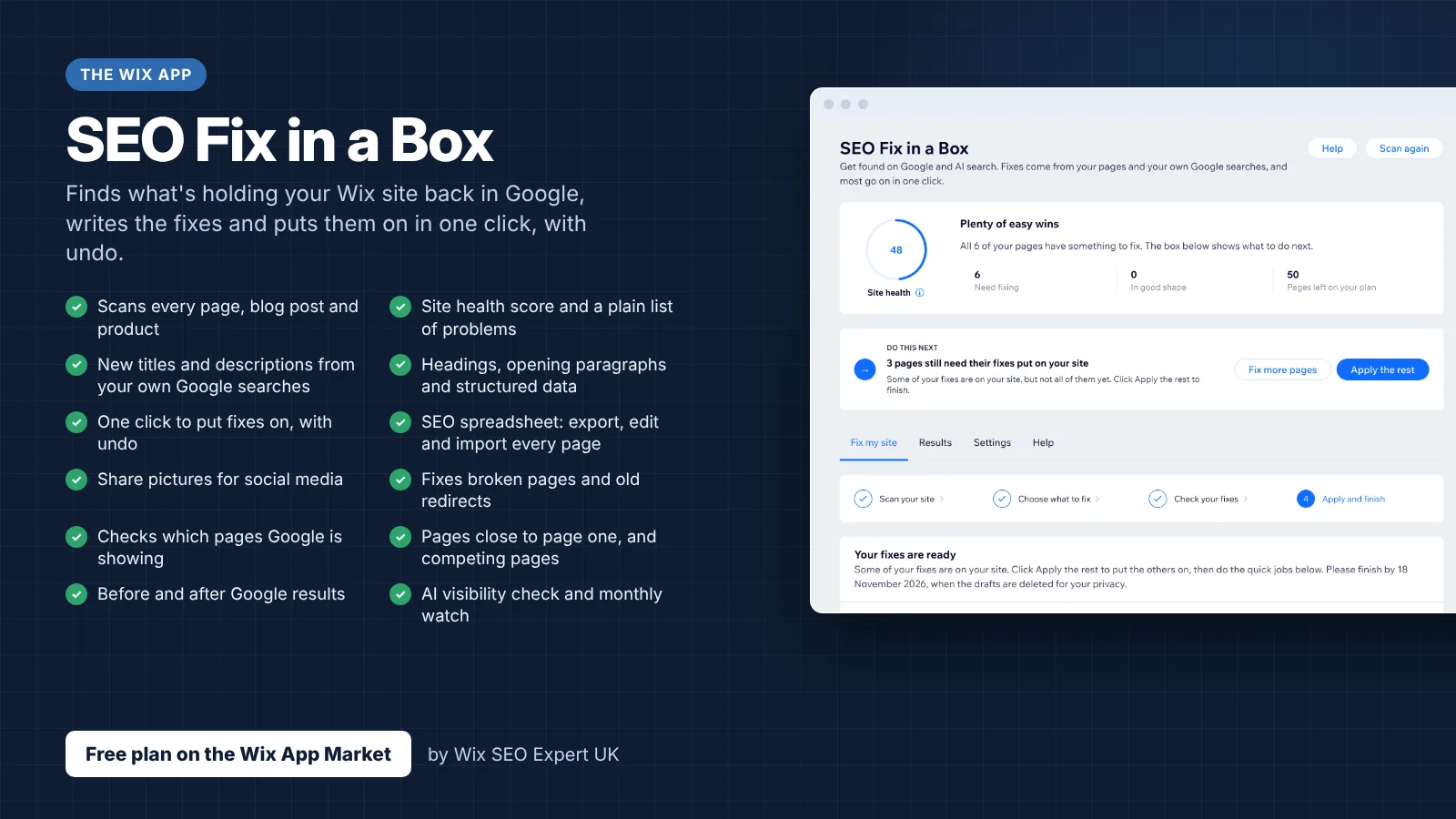
A Wix CLI app is a full-stack application where Wix handles the hosting and infrastructure. Your code is organised into clearly separated concerns: dashboard pages (React), site widgets (React), backend code (Node.js), and shared utilities. Understanding this architecture is essential before writing any code. As a real example, my own app Wix SEO Fix in a Box is built with the Wix CLI and is live on the Wix App Market.

- Dashboard Pages: React components rendered in the Wix site admin panel (the site owner sees these)
- Site Widgets: React components embedded on the live published website (site visitors see these)
- Backend Extensions: Node.js code running server-side for service plugins, webhooks and scheduled tasks
- Shared Code: TypeScript types, utilities and constants shared between frontend and backend
- Configuration: wix.config.ts defines permissions, OAuth scopes and extension declarations
Building a Dashboard Page with React
Dashboard pages are the primary interface for site owners to interact with your app. They appear in the Wix site admin under your app's section. Dashboard pages are standard React components with access to the Wix Dashboard SDK.
// src/dashboard/pages/page.tsx
import React, { useState, useEffect } from 'react';
import {
  Page,
  Card,
  Box,
  Text,
  Button,
  FormField,
  Input,
  ToggleSwitch,
  Loader,
} from '@wix/design-system';
import { dashboard } from '@wix/dashboard';
import { httpClient } from '@wix/essentials';

interface AppSettings {
  apiKey: string;
  enabled: boolean;
  scanFrequency: string;
}

export default function SettingsPage() {
  const [settings, setSettings] = useState<AppSettings>({
    apiKey: '',
    enabled: false,
    scanFrequency: 'weekly',
  });
  const [loading, setLoading] = useState(true);
  const [saving, setSaving] = useState(false);

  useEffect(() => {
    loadSettings();
  }, []);

  async function loadSettings() {
    try {
      const response = await httpClient.fetchWithAuth(
        `${import.meta.env.BASE_API_URL}/settings`
      );
      const data = await response.json();
      setSettings(data);
    } catch (error) {
      console.error('Failed to load settings:', error);
    } finally {
      setLoading(false);
    }
  }

  async function handleSave() {
    setSaving(true);
    try {
      await httpClient.fetchWithAuth(
        `${import.meta.env.BASE_API_URL}/settings`,
        {
          method: 'PUT',
          headers: { 'Content-Type': 'application/json' },
          body: JSON.stringify(settings),
        }
      );
      dashboard.showToast({
        message: 'Settings saved successfully',
        type: 'success',
      });
    } catch (error) {
      dashboard.showToast({
        message: 'Failed to save settings',
        type: 'error',
      });
    } finally {
      setSaving(false);
    }
  }

  if (loading) return <Loader />;

  return (
    <Page>
      <Page.Header title="SEO Monitor Settings" />
      <Page.Content>
        <Card>
          <Card.Header title="Configuration" />
          <Card.Content>
            <Box direction="vertical" gap="24px">
              <FormField label="API Key">
                <Input
                  value={settings.apiKey}
                  onChange={(e) =>
                    setSettings((s) => ({
                      ...s,
                      apiKey: e.target.value,
                    }))
                  }
                  placeholder="Enter your API key"
                />
              </FormField>
              <FormField label="Enable Monitoring">
                <ToggleSwitch
                  checked={settings.enabled}
                  onChange={() =>
                    setSettings((s) => ({
                      ...s,
                      enabled: !s.enabled,
                    }))
                  }
                />
              </FormField>
              <Button onClick={handleSave} disabled={saving}>
                {saving ? 'Saving...' : 'Save Settings'}
              </Button>
            </Box>
          </Card.Content>
        </Card>
      </Page.Content>
    </Page>
  );
}
Building a Site Widget with React
Site widgets render on the published website. They should be lightweight, performant and visually adaptable to any Wix theme. Site widgets have access to a different set of APIs than dashboard pages.
// src/site/widgets/seo-badge/widget.tsx
import React, { useEffect, useState } from 'react';
import { widget } from '@wix/widget';
interface SeoData {
score: number;
grade: string;
issues: number;
}
export default function SeoBadgeWidget() {
const [data, setData] = useState<SeoData | null>(null);
const props = widget.getProps();
useEffect(() => {
fetchSeoData();
}, []);
async function fetchSeoData() {
try {
const res = await fetch('/api/seo-score');
const json = await res.json();
setData(json);
} catch {
setData({ score: 0, grade: 'N/A', issues: 0 });
}
}
if (!data) {
return <div style={{ padding: 16 }}>Loading...</div>;
}
const colour =
data.score >= 80 ? '#16a34a' :
data.score >= 50 ? '#d97706' : '#dc2626';
return (
<div style={{
padding: 20,
borderRadius: 12,
border: '1px solid #e5e7eb',
fontFamily: 'inherit',
}}>
<div style={{ fontSize: 14, fontWeight: 600, marginBottom: 8 }}>
{props.title || 'SEO Score'}
</div>
<div style={{
fontSize: 48,
fontWeight: 800,
color: colour,
lineHeight: 1,
}}>
{data.score}
</div>
<div style={{
fontSize: 12,
color: '#6b7280',
marginTop: 4,
}}>
Grade: {data.grade} · {data.issues} issues found
</div>
</div>
);
}Backend Service Plugins and Webhooks
Backend extensions run server-side and handle data processing, webhook events, scheduled tasks and API endpoints. They are the backbone of any complex Wix app.
// src/backend/service-plugins/settings.ts
import { Permissions, webMethod } from '@wix/web-modules';
import wixData from 'wix-data';

export const getSettings = webMethod(
  Permissions.Anyone,
  async (instanceId: string) => {
    const result = await wixData.query('AppSettings')
      .eq('instanceId', instanceId)
      .find();

    return result.items[0] || {
      instanceId,
      apiKey: '',
      enabled: false,
      scanFrequency: 'weekly',
    };
  }
);

export const updateSettings = webMethod(
  Permissions.Admin,
  async (instanceId: string, settings: Record<string, unknown>) => {
    const existing = await wixData.query('AppSettings')
      .eq('instanceId', instanceId)
      .find();

    const data = { ...settings, instanceId };

    if (existing.items.length > 0) {
      return wixData.update('AppSettings', {
        ...existing.items[0],
        ...data,
      });
    }
    return wixData.insert('AppSettings', data);
  }
);
OAuth Authentication and Instance Management
Every Wix app installation creates a unique instance. Your app needs to handle OAuth authentication to identify which site is making requests and verify that requests are legitimate. The Wix SDK handles most of this automatically, but understanding the flow is important.
- App Instance ID: A unique identifier for each installation of your app on a Wix site
- OAuth Flow: Wix handles the OAuth 2.0 handshake automatically through the SDK
- Permissions: Declare required permissions in wix.config.ts (e.g., Wix Stores read, Wix CRM write)
- Authentication: Use httpClient.fetchWithAuth() for authenticated requests to your backend
- Instance Context: Access the current instance ID and site details through the Wix SDK context
Working with Wix Database Collections
Your app can create and manage its own database collections on the site owner's Wix site. This is the primary way to store app-specific data like settings, user preferences and cached results.
Set up a database collection for your app
- Define your collection schema in the wix.config.ts file under the collections extension. Specify field names, types and permissions.
- The collection is automatically created when your app is installed on a site. No manual database setup required.
- Use the Wix Data API (@wix/data) to perform CRUD operations: query, insert, update, remove.
- Set appropriate permissions: Admin-only for settings, Site Members for user data, Anyone for public content.
- Add indexes for fields you frequently query to improve performance as data grows.
How to Build and Deploy a Wix CLI App with React and a Custom Backend
Follow these steps to scaffold, develop and deploy a fully functional Wix CLI app that includes a dashboard page, a site widget and a backend service plugin connected to a Wix database collection.
Building and launching your first Wix CLI app end-to-end
- Step 1: Install the Wix CLI globally by running npm install -g @wix/cli in your terminal. Verify the installation with wix --version. Ensure you have Node.js 18+ installed.
- Step 2: Run wix app create in your terminal and follow the prompts to scaffold your app. Choose "TypeScript" and "React" when prompted. The CLI generates the full directory structure including dashboard, site, backend and shared folders.
- Step 3: Open wix.config.ts in the generated project. Declare your app permissions, dashboard pages, site widget names and backend service plugins. Add only the API scopes your app genuinely needs.
- Step 4: Create your dashboard page in src/dashboard/pages/page.tsx using the Wix Design System components: import Page, Card, Text, Button, FormField and Input from @wix/design-system. Build the settings UI your app needs.
- Step 5: Create your site widget in src/site/widgets/[name]/widget.tsx. Keep the widget bundle small: lazy-load large dependencies and avoid including backend-only code in the widget bundle.
- Step 6: Create backend web methods in src/backend/service-plugins/ using the webMethod wrapper from @wix/web-modules. Set permissions to Permissions.Admin for write operations and Permissions.Anyone for public reads.
- Step 7: Define your CMS collection schema in wix.config.ts under the collections extension. Specify all field names, types (text, number, boolean, date) and read/write permissions for each field.
- Step 8: Run wix dev to start local development. The CLI opens a preview URL in your browser where you can test your dashboard page and widget in a live Wix environment without deploying.
- Step 9: Use the Wix Secrets Manager API to store any third-party API keys your app needs. Never hardcode credentials in source files. Access secrets in backend code only via the getSecret() function.
- Step 10: Run wix app build to compile your app, then wix app deploy to publish it to the Wix App Market as a private app. Share the install URL with test sites before submitting for public review.
Essential Tools for This Lesson
- SEO Fix in a Box: My Wix app. Free to install, it scans your site and shows what needs fixing, and paid plans write the fixes from your own Google searches
Was this lesson useful?
It takes 1 minute to tell me. The course is free and I want to keep it that way, and your feedback shows me what is working and helps other people find it.
This lesson on Building a Wix CLI app with React and custom backend is part of Module 47: How to Build a Wix App: Complete Developer Guide in The Most Comprehensive Complete Wix SEO Course in the World (2026 Edition). Created by Michael Andrews, a Wix Marketplace Legend Partner with 14 years of hands-on experience, 800 completed Wix SEO projects and 456 verified five-star reviews.