Building an SEO reporting system that saves you hours every month
Module 52: SEO Audits, Client Work & Going Pro | Lesson 575 of 683 | 48 min read
By Michael Andrews, Wix SEO Expert UK
The average SEO professional spends 4-6 hours per client per month manually creating reports: pulling data from Search Console, GA4, rank tracking tools, and backlink databases, then copying it into spreadsheets or slide decks. At 10 clients, that is 40-60 hours per month, essentially an entire work week, spent on reporting instead of optimisation work. This lesson teaches you how to build an automated reporting system using Google Looker Studio that pulls data from all your sources, updates automatically, and produces client-ready reports that take 30 minutes to review and send instead of 4-6 hours to build.
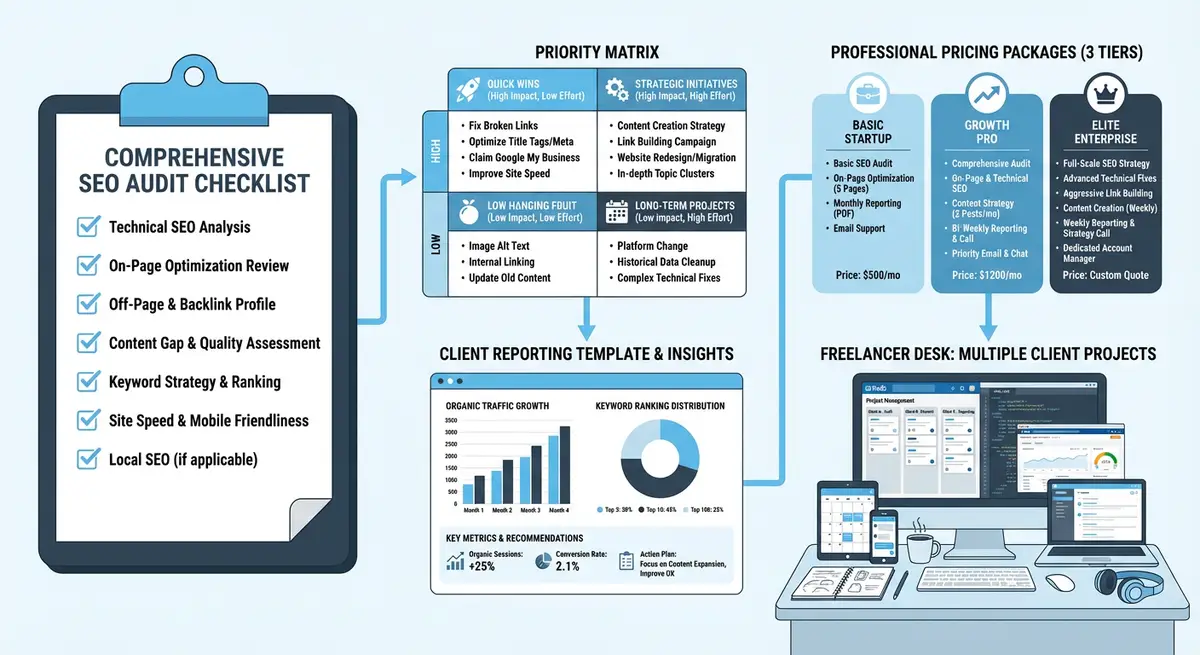
Why Automated Reporting Transforms Your Practice
Manual reporting is not just time-consuming; it is error-prone, inconsistent, and scales poorly. An automated system delivers the same data quality every month without human error, allows you to focus your limited time on analysis and strategy rather than data gathering, and creates a professional, consistent brand experience across all client reports.
- Time savings: 30 minutes per client per month instead of 4-6 hours, freeing 35-55 hours monthly across 10 clients.
- Consistency: every report follows the same structure, uses the same metrics, and presents data identically. No more forgetting to include a section.
- Real-time data: clients can access their dashboard at any time to see current performance, reducing "how are we doing?" emails.
- Scalability: adding a new client means duplicating a template and connecting data sources, not building a new report from scratch.
- Professional presentation: Looker Studio produces polished, branded reports that elevate your perceived value.
Choosing Your Reporting Stack
A complete reporting system has three layers: data sources (where the data lives), connectors (how data flows into your reporting tool), and the reporting platform (where you build the dashboards). Here is the recommended stack for Wix SEO professionals.
Data Sources
- Google Search Console: keyword performance, indexing data, Core Web Vitals, crawl errors. Primary source of organic search data.
- Google Analytics 4: traffic data, user behaviour, conversions, eCommerce revenue. Essential for connecting SEO to business outcomes.
- Rank tracking tool (Semrush, Ahrefs, or SE Ranking): historical keyword position data with daily granularity.
- Backlink tool (Ahrefs or Semrush): domain authority trend, new and lost backlinks, referring domain count.
- Google Business Profile Insights: local SEO metrics including searches, views, calls, and direction requests.
Google Looker Studio: The Reporting Platform
Google Looker Studio (formerly Google Data Studio) is free, integrates natively with Google products, supports third-party data connectors, and produces professional-quality dashboards. It is the industry standard for SEO reporting and the platform we recommend for all client reporting.
Data Connectors
- Native Google connectors: Search Console and GA4 connect directly to Looker Studio at no cost. These are the easiest to set up.
- Supermetrics: paid connector that pulls data from 100+ sources including Semrush, Ahrefs, Facebook Ads, and more. The most popular third-party option.
- Porter Metrics: affordable alternative to Supermetrics with similar functionality. Good for agencies on a budget.
- Funnel.io: enterprise-level data pipeline that normalises data from multiple sources. Best for agencies with 20+ clients.
- Manual data upload: for tools without connectors, export data as CSV and upload to Google Sheets, then connect Sheets to Looker Studio.
Building Your Looker Studio SEO Dashboard: Step by Step
Step 1: Dashboard Architecture
Plan your dashboard structure before building anything. A well-organised dashboard tells a story: it starts with the high-level overview, drills down into specific areas, and ends with next steps. The recommended structure uses 5-7 pages.
- Page 1 - Executive Summary: KPI scorecards showing organic sessions, revenue/conversions, keyword visibility, and domain authority with month-over-month and year-over-year trends.
- Page 2 - Organic Traffic: detailed traffic breakdown by channel, landing page, device, and geography. Time series charts showing daily and monthly trends.
- Page 3 - Keyword Performance: top keyword positions, position distribution chart (how many keywords in positions 1-3, 4-10, 11-20, etc.), biggest movers up and down.
- Page 4 - Content Performance: top blog posts by traffic, engagement metrics, content freshness indicators.
- Page 5 - Technical Health: Core Web Vitals trends, indexing status, crawl errors, redirect health.
- Page 6 - Backlink Profile: new and lost backlinks, referring domain trend, top linking domains.
- Page 7 - Goals and Next Steps: progress against quarterly targets, planned activities for next month.
Step 2: Connecting Google Search Console
Setting up the GSC data source in Looker Studio
- Open Looker Studio and create a new report (or open your template)
- Click "Add data" and select "Search Console" from the Google Connectors list
- Select the correct Search Console property (the client's verified domain)
- Choose "Site impression" for page-level data or "URL impression" for URL-level detail
- Set the date range to a rolling window (last 16 months recommended for YoY comparison)
- Click "Add" to connect the data source
- Create time series charts for clicks, impressions, CTR, and average position
- Add a table showing top queries with clicks, impressions, CTR, and position columns
Step 3: Connecting Google Analytics 4
Setting up the GA4 data source
- Click "Add data" and select "Google Analytics" from the connectors list
- Select the client's GA4 property
- Choose the appropriate data stream
- Create scorecards for: Total Users (organic), Sessions (organic), Engaged Sessions, Conversions (organic)
- Add a filter to show only organic traffic (Session source/medium contains "google / organic" or "bing / organic")
- Create a landing page table showing the top 20 organic landing pages with sessions, engagement rate, and conversions
- Add a time series chart showing organic sessions trend over the reporting period
Step 4: Adding Rank Tracking Data
If you use Semrush or Ahrefs, connect via Supermetrics or Porter Metrics. If you use a tool without a direct connector, export rank data weekly to Google Sheets and connect Sheets to Looker Studio.
Manual rank tracking data workflow
- Create a Google Sheet template with columns: Keyword, Current Position, Previous Position, Change, Search Volume, URL
- Export rank data from your tracking tool weekly or monthly
- Paste the data into the Google Sheet
- In Looker Studio, add Google Sheets as a data source and select the rank tracking sheet
- Create a table showing keyword positions with conditional formatting (green for improvements, red for declines)
- Create a position distribution chart: bar chart showing keyword count in position ranges (1-3, 4-10, 11-20, 21-50, 50+)
Step 5: Branding and Presentation
Making the dashboard client-ready
- Add your agency logo and the client logo to the header of every page
- Set a consistent colour scheme: use your agency brand colours for charts and UI elements
- Add a date range selector so clients can adjust the reporting period
- Add navigation tabs or a page menu for easy movement between dashboard pages
- Write brief explanatory text below each chart explaining what the data means in plain language
- Add a "What does this mean?" tooltip or annotation for technical metrics
- Test the dashboard on mobile: Looker Studio dashboards should be readable on phones and tablets
The 30-Minute Monthly Report Workflow
With your automated dashboard in place, your monthly reporting process shrinks from hours to minutes. Here is the workflow:
Monthly reporting process with automated dashboards
- Open the Looker Studio dashboard for the client (5 minutes)
- Review the Executive Summary page: any unusual movements or data anomalies? (5 minutes)
- Check keyword performance: any significant rank changes to highlight? (5 minutes)
- Review traffic trends: is the growth trajectory on track? Any dips to explain? (5 minutes)
- Write a brief commentary email (3-5 paragraphs) summarising: key wins, any challenges, and what you are working on next month (10 minutes)
- Share the dashboard link with the client or export as PDF and attach to the email
- Total time: approximately 30 minutes per client
Advanced Reporting Features
Automated Email Delivery
Looker Studio supports scheduled email delivery. Configure each client dashboard to send a PDF snapshot automatically on the first Monday of every month. This means clients receive their report without you having to remember to send it. You still review the data and send your commentary email separately, but the automated delivery ensures clients always have their data on time.
Year-Over-Year Comparison Charts
The most powerful way to show SEO progress is year-over-year comparison. In Looker Studio, create calculated fields that show the YoY change for key metrics. A chart showing "March 2026 vs March 2025" is far more meaningful than "March vs February" because it accounts for seasonal patterns.
Goal Tracking Scorecards
Set quarterly KPI targets with each client and create scorecards that show progress toward those targets. A visual progress bar showing "67% toward quarterly traffic goal" gives clients immediate context about whether the campaign is on track.
Annotations for Context
Add annotation markers on time series charts to indicate when significant events occurred: algorithm updates, new content published, technical fixes implemented, or site migrations. These annotations provide essential context for interpreting data trends.
Creating Custom Metrics and Calculated Fields
Standard metrics from GSC and GA4 tell part of the story, but custom calculated fields in Looker Studio unlock insights that standard reports cannot provide. These calculated metrics differentiate your reporting from generic dashboards and provide clients with unique value.
Essential Custom Metrics
- SEO Visibility Score: create a weighted composite metric that combines keyword positions, indexed page count, and referring domain count into a single score. Track this month-over-month as your headline KPI.
- Keyword Position Distribution: calculated field that categorises each keyword as Position 1-3, 4-10, 11-20, 21-50, or 50+. Display as a stacked bar chart to show how the overall position profile is improving.
- Estimated Organic Traffic Value: multiply organic clicks by the estimated cost-per-click for each keyword. This shows clients what they would have paid for the same traffic via Google Ads. Powerful for demonstrating SEO ROI.
- Content Efficiency Score: organic sessions divided by word count for each page. Reveals which content topics generate the most traffic per unit of content investment.
- Click-Through Rate Opportunity: identify pages with high impressions but below-average CTR. These pages have visibility but their title tags and meta descriptions are underperforming.
- Conversion Rate by Landing Page: organic sessions to conversion rate per page. Identifies which pages drive business results versus which pages drive vanity traffic.
Building Calculated Fields in Looker Studio
Creating a custom metric step by step
- In your Looker Studio report, click on a chart or add a new chart
- In the data panel, click "Add a field" and select "Calculated field"
- Name the field descriptively (e.g., "Estimated Traffic Value")
- Enter the formula using available data fields and Looker Studio functions. Example: Clicks * CPC_estimate
- For CTR Opportunity: create a CASE statement that flags pages with impressions > 1000 AND CTR < 2% as "Opportunity"
- For Position Buckets: use CASE WHEN Average Position <= 3 THEN "Top 3" WHEN Average Position <= 10 THEN "Page 1" ... END
- Test the calculated field by adding it to a table and verifying the output makes sense
- Save the field and use it across multiple charts and scorecards in your dashboard
Building an Automated Alert System
Reporting is retrospective: it tells you what happened. An alert system is proactive: it tells you when something unusual is happening right now. Combining automated reports with real-time alerts ensures you catch problems immediately rather than discovering them in next month's report.
Essential SEO Alerts to Configure
Setting up proactive monitoring alerts
- Google Search Console email alerts: enable all notifications in Search Console settings. Google will alert you to manual actions, security issues, and significant indexing changes.
- Uptime monitoring: configure Uptime Robot (free) to ping the site every 5 minutes and send instant email or SMS alerts on downtime.
- Rank tracking alerts: in your rank tracking tool, set alerts for keywords that drop more than 10 positions in a single day.
- Traffic anomaly alerts: in GA4, create a custom alert that fires when daily organic sessions drop more than 30% compared to the same day the previous week.
- Backlink alerts: in Ahrefs or Semrush, set up notifications for significant backlink gains or losses (10+ referring domains in a single day).
- Competitor alerts: set up competitor rank tracking to be notified when a competitor overtakes your client for a target keyword.
- Core Web Vitals alerts: use a tool like DebugBear or SpeedCurve to monitor CWV scores and alert when thresholds are breached.
- SSL certificate monitoring: ensure you receive alerts before the SSL certificate expires (Wix handles this automatically, but verify).
Reporting for Different Client Types
Not every client needs the same report depth. A startup founder who checks in weekly needs a different report format than a corporate marketing director who presents to a board. Tailoring your reports to the audience maximises their impact.
- Solo founders and small business owners: keep it simple. One-page summary with 3-5 key metrics, one chart showing traffic trend, and 3 bullet points on what you did and what you will do next. They want to know "is it working?" not the technical details.
- Marketing managers: moderate detail. 3-5 page report with KPI dashboard, keyword performance table, content performance summary, and competitive insights. They need data to justify the SEO budget to their leadership.
- Corporate or enterprise clients: comprehensive reporting. Full dashboard with every metric, accompanied by a written narrative report. They present your data in board meetings, so it must be polished, branded, and defensible.
- eCommerce clients: revenue-focused. Organic revenue, ROAS, product page performance, and conversion funnel metrics. Traffic and rankings are secondary to commercial outcomes.
- Local businesses: local-focused. Google Business Profile metrics (calls, directions, visits), local keyword rankings, and review activity. National keyword data is less relevant.
Was this lesson useful?
It takes 1 minute to tell me. The course is free and I want to keep it that way, and your feedback shows me what is working and helps other people find it.
This lesson on Building an SEO reporting system that saves you hours every month is part of Module 52: SEO Audits, Client Work & Going Pro in The Most Comprehensive Complete Wix SEO Course in the World (2026 Edition). Created by Michael Andrews, a Wix Marketplace Legend Partner with 14 years of hands-on experience, 800 completed Wix SEO projects and 456 verified five-star reviews.