App design, UX and accessibility for Wix apps
Module 47: How to Build a Wix App: Complete Developer Guide | Lesson 531 of 683 | 50 min read
By Michael Andrews, Wix SEO Expert UK
Design can make or break your Wix app. Users expect apps to feel native to the Wix platform, load instantly, and be effortless to configure. This lesson covers the Wix Design System, responsive widget patterns, accessibility compliance, dark mode support and the UX patterns that turn first-time installers into long-term users. A well-designed app gets better reviews, lower churn and more organic referrals.
The Wix Design System: Your Foundation
Wix provides a comprehensive design system with React components, design tokens and style guidelines specifically for app developers. Using the Wix Design System ensures your app looks professional, consistent with the Wix dashboard, and accessible by default.

- Component library: 80+ React components including Page, Card, Table, FormField, Input, Button, Modal, Toast and more
- Design tokens: Standardised colour, typography and spacing values that match the Wix dashboard theme
- Layout primitives: Box, Cell, Layout and Grid components for consistent, responsive page structures
- Data display: Table, StatisticsWidget, Timeline and Badge components for presenting data attractively
- Feedback patterns: Toast, Notification, Loader and EmptyState components for user communication
Dashboard Page Design Patterns
Dashboard pages are where site owners interact with your app. Following established patterns makes your app intuitive from the first use.
Essential dashboard page patterns for Wix apps
- Settings page: Use the Page component with a PageHeader, Card sections for grouped settings, and a sticky save button. Group related settings with clear section headings.
- Analytics page: Use StatisticsWidget for key metrics at the top, followed by a Table or chart for detailed data. Include date range filters and export options.
- List/management page: Use Table with sorting, filtering, search and pagination. Include bulk actions in the table header and row-level actions in a dropdown.
- Onboarding page: Create a step-by-step wizard with a progress indicator, clear instructions and a "Get Started" CTA. First-time user experience is critical for retention.
- Empty states: Never show a blank page. Use the EmptyState component with a clear message, helpful illustration and a primary action button.
// Dashboard analytics page example using Wix Design System
import React from 'react';
import {
  Page,
  Card,
  StatisticsWidget,
  Table,
  TableToolbar,
  Search,
  DatePicker,
  Box,
  EmptyState,
} from '@wix/design-system';

export default function AnalyticsPage({ data, loading }) {
  if (!data && !loading) {
    return (
      <Page>
        <Page.Header title="SEO Analytics" />
        <Page.Content>
          <EmptyState
            title="No data yet"
            subtitle="Install the site widget to start tracking SEO metrics"
            theme="page"
          />
        </Page.Content>
      </Page>
    );
  }

  return (
    <Page>
      <Page.Header title="SEO Analytics" />
      <Page.Content>
        <Box marginBottom="24px">
          <StatisticsWidget
            items={[
              {
                value: String(data?.seoScore || 0),
                description: 'SEO Score',
                percentage: data?.scoreChange || 0,
              },
              {
                value: String(data?.pagesScanned || 0),
                description: 'Pages Scanned',
              },
              {
                value: String(data?.issuesFound || 0),
                description: 'Issues Found',
              },
              {
                value: String(data?.issuesFixed || 0),
                description: 'Issues Fixed',
              },
            ]}
          />
        </Box>

        <Card>
          <TableToolbar>
            <TableToolbar.ItemGroup position="start">
              <TableToolbar.Item>
                <Search placeholder="Search pages..." />
              </TableToolbar.Item>
            </TableToolbar.ItemGroup>
          </TableToolbar>
          <Table
            data={data?.pages || []}
            columns={[
              { title: 'Page URL', render: (row) => row.url },
              { title: 'Score', render: (row) => row.score },
              { title: 'Issues', render: (row) => row.issues },
              { title: 'Last Scan', render: (row) => row.lastScan },
            ]}
          />
        </Card>
      </Page.Content>
    </Page>
  );
}
Responsive Widget Design
Site widgets must look perfect on every device, in every Wix template, at every size the site owner chooses. This requires careful responsive design.
- Use relative units (%, em, rem) instead of fixed pixels for widths and spacing
- Test at minimum widths of 280px (smallest reasonable mobile) and maximum of 1200px (full-width desktop)
- Stack horizontal layouts vertically on mobile using CSS flexbox with flex-wrap
- Scale typography proportionally: use clamp() for fluid font sizes
- Hide non-essential content on mobile rather than cramming everything in
- Ensure touch targets are at least 44x44px on mobile for accessibility compliance
Accessibility (WCAG 2.1) Compliance
Wix requires all apps to meet basic accessibility standards. Apps that fail accessibility checks will be rejected during review. More importantly, accessible apps serve a wider audience and are legally required in many jurisdictions.
Accessibility checklist for Wix app widgets and dashboard pages
- Colour contrast: Ensure all text meets WCAG AA contrast ratios (4.5:1 for normal text, 3:1 for large text). Use the WebAIM contrast checker tool.
- Keyboard navigation: Every interactive element must be focusable and operable with keyboard only. Test by tabbing through your entire UI without touching the mouse.
- Screen reader support: Add aria-labels to all buttons and icons that lack visible text. Use semantic HTML elements (nav, main, section, article) throughout.
- Focus indicators: Never remove the focus outline. Style it to be visible against all backgrounds. The Wix Design System components handle this by default.
- Alt text: Every image must have descriptive alt text. Decorative images should use alt="" to be skipped by screen readers.
- Error messages: Form validation errors must be programmatically associated with the input field using aria-describedby.
Dark Mode and Theme Adaptation
While Wix dashboard pages follow a light theme, site widgets must adapt to the site owner's chosen theme. Some Wix templates use dark backgrounds, and your widget must look good on both light and dark surfaces.
- Use the Wix Design System colour tokens ($color-5, $color-10) which automatically adapt to the site theme
- For custom styling, detect the background brightness and switch between light and dark colour schemes
- Test your widget on at least 5 different Wix templates with varying colour schemes before submission
- Avoid hard-coded white backgrounds that will clash with dark-themed sites
- Provide a "Light/Dark" design preset option so site owners can manually override if automatic detection fails
Design and Accessibility Tools
- Wix Design System: Official React component library and design guidelines
- WebAIM Contrast Checker: Check colour contrast ratios for accessibility
- axe DevTools: Browser extension for automated accessibility testing
- Wix Accessibility Guidelines: Official Wix accessibility requirements for apps
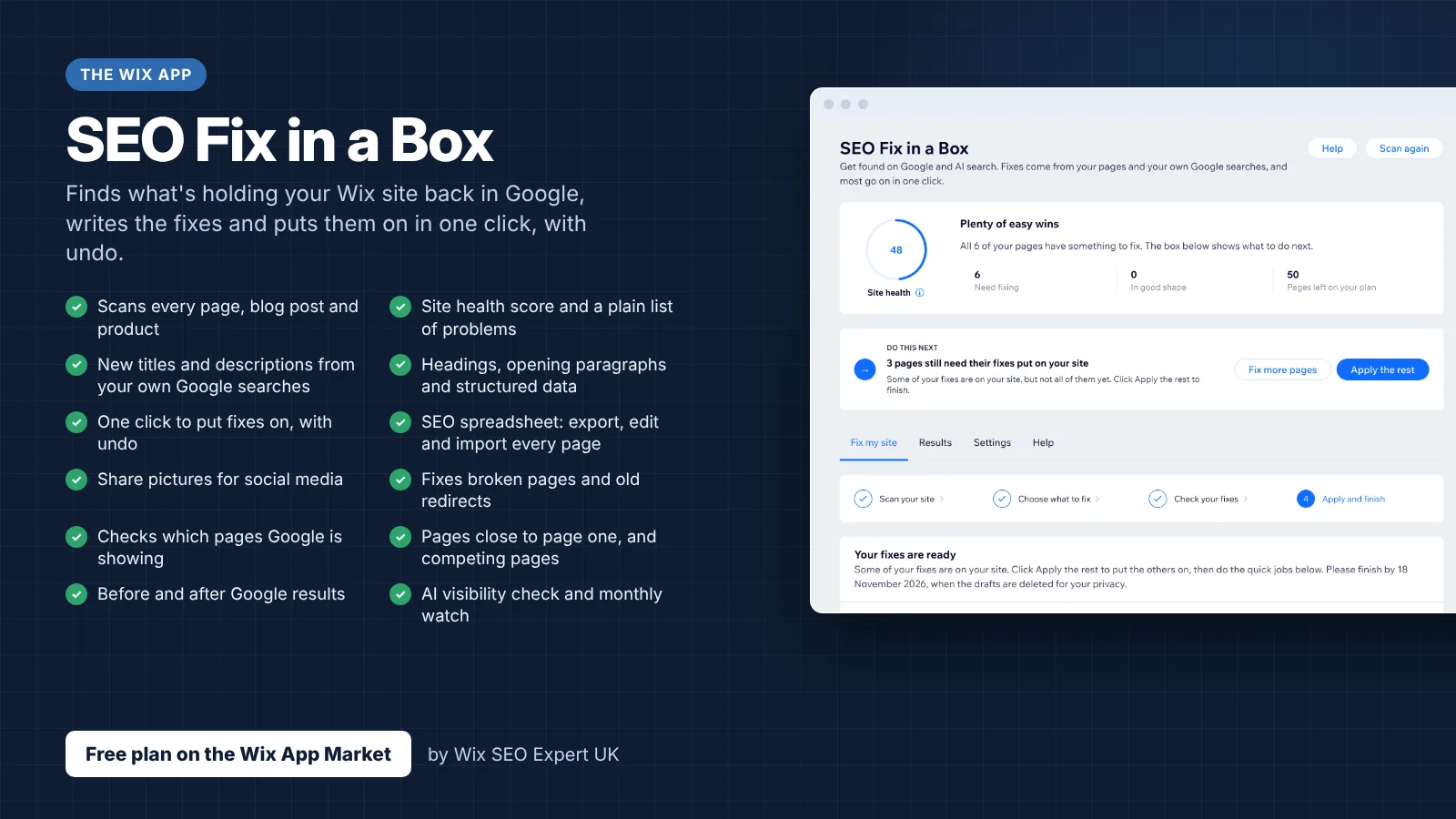
- SEO Fix in a Box: My Wix app. Free to install, it scans your site and shows what needs fixing, and paid plans write the fixes from your own Google searches
Was this lesson useful?
It takes 1 minute to tell me. The course is free and I want to keep it that way, and your feedback shows me what is working and helps other people find it.
This lesson on App design, UX and accessibility for Wix apps is part of Module 47: How to Build a Wix App: Complete Developer Guide in The Most Comprehensive Complete Wix SEO Course in the World (2026 Edition). Created by Michael Andrews, a Wix Marketplace Legend Partner with 14 years of hands-on experience, 800 completed Wix SEO projects and 456 verified five-star reviews.